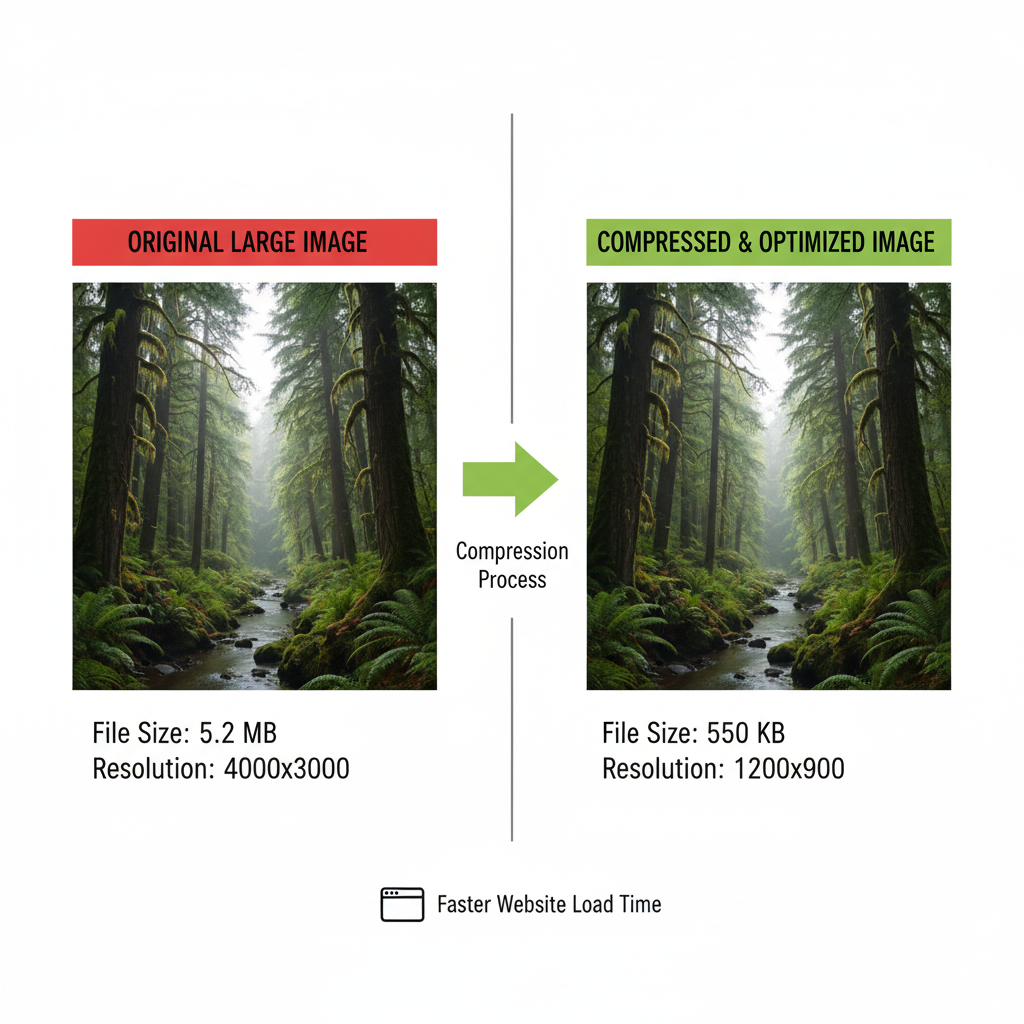
Large images are one of the main reasons websites load slowly. Every extra kilobyte of an image increases page load time, affecting user experience and SEO. Before uploading, compress images using tools like TinyPNG, ImageOptim, or Squoosh. Save images in modern formats like WebP, which offer better compression without losing quality. For example, a 3 MB PNG image can become just 200 KB in WebP format while keeping the quality almost the same. Additionally, resize images to the exact dimensions needed on your website rather than uploading full-size photos and relying on WordPress to resize them automatically. This reduces server load and ensures faster display. Using descriptive filenames and alt text for images also improves SEO. Optimizing images before uploading is the simplest and most effective step for WordPress speed optimization.
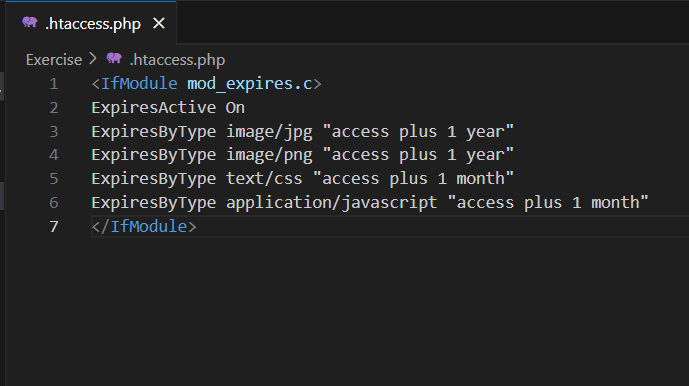
Browser caching allows your visitors’ browsers to store static files like images, CSS, and JavaScript so that repeat visitors don’t have to reload the entire page every time they visit. You can enable caching manually by adding specific rules in your .htaccess file. For example:
<IfModule mod_expires.c>

ExpiresActive On

ExpiresByType image/jpg "access plus 1 year"

ExpiresByType image/png "access plus 1 year"

ExpiresByType text/css "access plus 1 month"

ExpiresByType application/javascript "access plus 1 month"

</IfModule>
This ensures that frequently used files are served faster without asking the server every time. By reducing HTTP requests and reloading static files from the browser cache, your pages will load significantly faster, especially for returning visitors. Browser caching also improves Core Web Vitals, which is an important ranking metric in Google’s SEO. Even beginners can implement this by editing .htaccess carefully or asking hosting support for help. Proper caching reduces server strain and gives users a smoother experience.
Minification is the process of removing unnecessary spaces, comments, and line breaks from your code files. Large CSS, JS, and HTML files can slow down your website, as browsers take longer to load and parse them. You can minify files manually using online tools like Minifier.org or CSSNano. For example, a 500 KB CSS file may shrink to 150 KB after minification without affecting website functionality. You can also inline critical CSS for above-the-fold content while deferring non-essential CSS to improve loading speed.
This step is crucial because it reduces the file size that the browser must download, resulting in faster rendering of your page. Even if your website has minimal plugins, unoptimized CSS or JS from your theme can create delays. Manual minification ensures every byte of code is useful, contributing to improved performance, better SEO scores, and smoother user experience.
The theme you choose has a huge impact on your website speed. Some themes come loaded with heavy features, unnecessary scripts, and multiple libraries, which slow down page loading. Lightweight themes like GeneratePress, Astra, or OceanWP focus on speed and minimal code. They load faster while providing flexibility for customization.
Using a lightweight theme means fewer HTTP requests, smaller CSS/JS files, and faster rendering. Avoid themes with built-in page builders or unnecessary animation scripts if speed is your priority. A fast theme ensures that mobile users, who often have slower connections, can load pages quickly. Even without any plugins, a well-coded theme lays the foundation for a fast WordPress website. For SEO, fast-loading themes contribute directly to higher search rankings and better user retention.
Every external script, font, or widget adds extra server requests. Common examples include Google Fonts, social sharing buttons, analytics scripts, and embedded content. Each of these increases page load time. Use only the essential scripts and fonts, and try to load them asynchronously to prevent them from blocking page rendering.
For example, instead of loading multiple font styles from Google Fonts, choose one or two font families. If social share buttons are unnecessary, remove them or use simple HTML buttons. Reducing external requests directly reduces the time browsers spend waiting for resources, improving both page speed and SEO. A clean, minimal approach keeps your site lightweight and ensures visitors can access content without delays.
Over time, your WordPress database collects post revisions, spam comments, transient options, and old plugin data. This extra data slows down server response and page loading. You can optimize your database manually using phpMyAdmin or simple SQL queries like:
OPTIMIZE TABLE wp_posts;

OPTIMIZE TABLE wp_comments;
Regular database cleaning reduces server queries and improves load times. Additionally, deleting old revisions and spam comments keeps your database compact. Even websites with minimal plugins benefit from database optimization. By maintaining a clean database, your server works faster, delivering content quickly to visitors. Optimizing the database without plugins ensures that your website remains lightweight and responsive without relying on third-party tools.
GZIP compression reduces the size of your website files before they are sent to visitors’ browsers. This means smaller files travel over the internet, resulting in faster page loads. You can enable GZIP by adding this to your .htaccess file:
<IfModule mod_deflate.c>

AddOutputFilterByType DEFLATE text/html text/plain text/xml text/css text/javascript application/javascript

</IfModule>
With GZIP enabled, HTML, CSS, and JS files are compressed, sometimes reducing their size by up to 70%. Faster loading pages improve user experience and reduce bounce rates. Even without a plugin, GZIP is a server-level optimization that works for all visitors. Most hosting providers support GZIP compression by default, but enabling it manually ensures maximum efficiency for your WordPress site.
A CDN stores copies of your website files on multiple servers worldwide. When a visitor accesses your website, files are delivered from the nearest server, reducing latency and load time. Free options like Cloudflare allow you to implement a CDN without any plugin.
For example, if your server is in India and a visitor is in the US, normally files travel across continents. With a CDN, files are served from a nearby server, making your website faster. CDNs also help handle traffic spikes and reduce server strain. This optimization improves SEO and ensures a consistent experience for users worldwide. Even without plugins, a properly configured CDN is one of the most effective ways to boost WordPress speed.
Unused themes, plugins, and widgets add unnecessary code to your website. Even if not active, some theme files remain on your server and can slow down backups, updates, or page rendering. Go through your WordPress dashboard and delete themes and widgets you don’t use.
For example, keep only your active theme and one default theme as a backup. Remove extra widgets from sidebars, headers, or footers that do not contribute to user experience. This keeps your website lightweight, reduces server load, and improves page speed. Regular maintenance, including removing old files, ensures your WordPress site remains fast without relying on plugins.
Above-the-fold content is the part of the page visible before scrolling. Loading it quickly improves perceived speed, meaning users feel your website loads faster. You can inline critical CSS for above-the-fold sections while deferring non-critical CSS and JavaScript.
For example, inline your header, menu, and hero section CSS into the HTML file and load other styles later. This ensures content is visible immediately without waiting for all styles to load. Optimizing above-the-fold content improves user experience, reduces bounce rates, and contributes to better Core Web Vitals scores. Even without plugins, this manual method significantly boosts WordPress page speed.